


Managing two calendars can get overwhelming — especially when you’re using Google Workspace and Microsoft 365 across different needs. Luckily, you can integrate Google Calendar and Outlook so your events stay in sync (or at least visible) in one place.
In this guide, you’ll learn how to connect both tools, view one calendar inside the other, and even explore two-way sync options.
Note: For this to work, the super admin has to have allowed external sharing options for secondary calendars with the share all information, and allow management of calendars options.
Why Integrate Google Calendar and Outlook?
If you’re juggling between Gmail and Outlook, you probably know how easy it is to double-book yourself. Integrating the two calendars helps you:
- View all meetings in one place
- Avoid schedule conflicts
- Sync personal and work events
- Improve productivity and visibility
Let’s dive right into the setup.
Method 1: View Google Calendar in Outlook
Step 1: Get Your Google Calendar’s iCal Link
- Go to Google Calendar.
- On the left panel, hover over your calendar name → click ⋮ (three dots) → Settings and sharing.

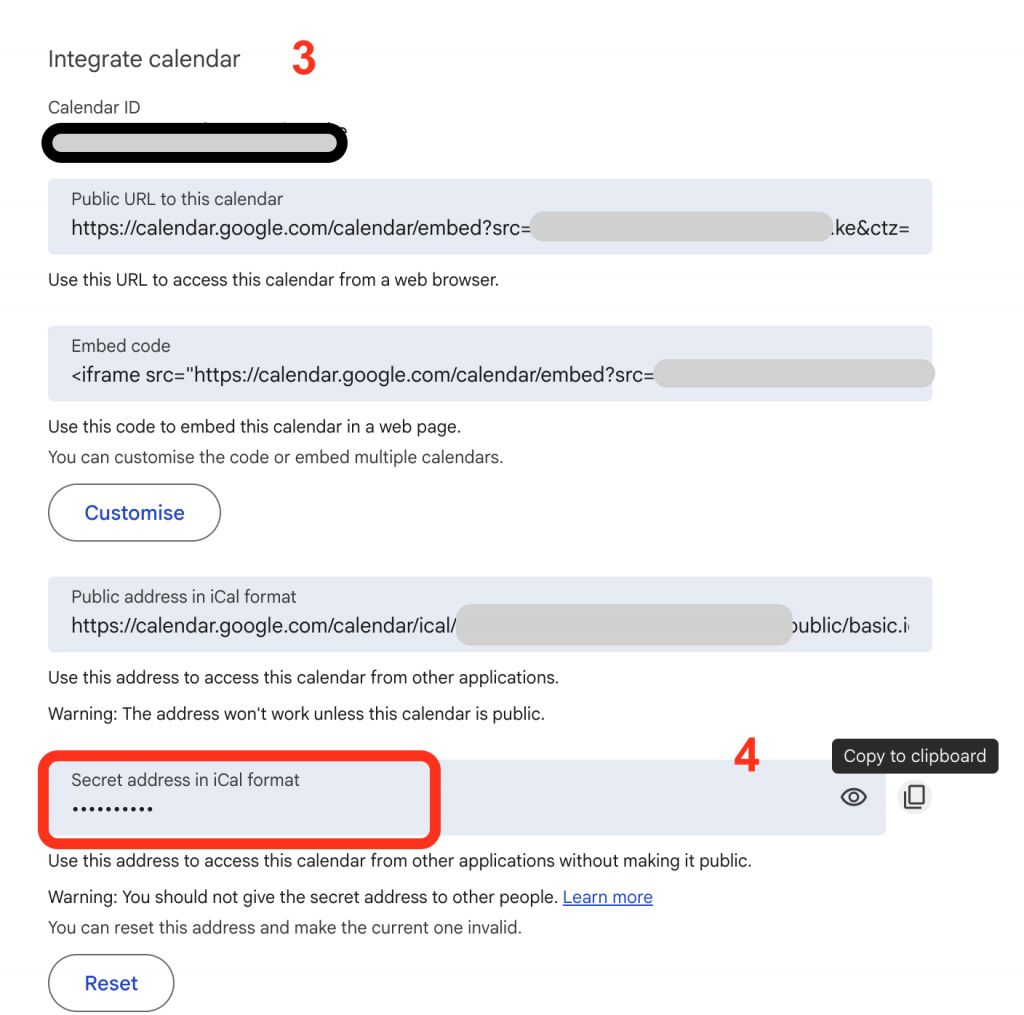
3. Scroll to Integrate calendar.
4. Copy the Secret address in iCal format.
Pro Tip: The “Secret address” is private — don’t share it publicly.
Step 2: Add It to Outlook
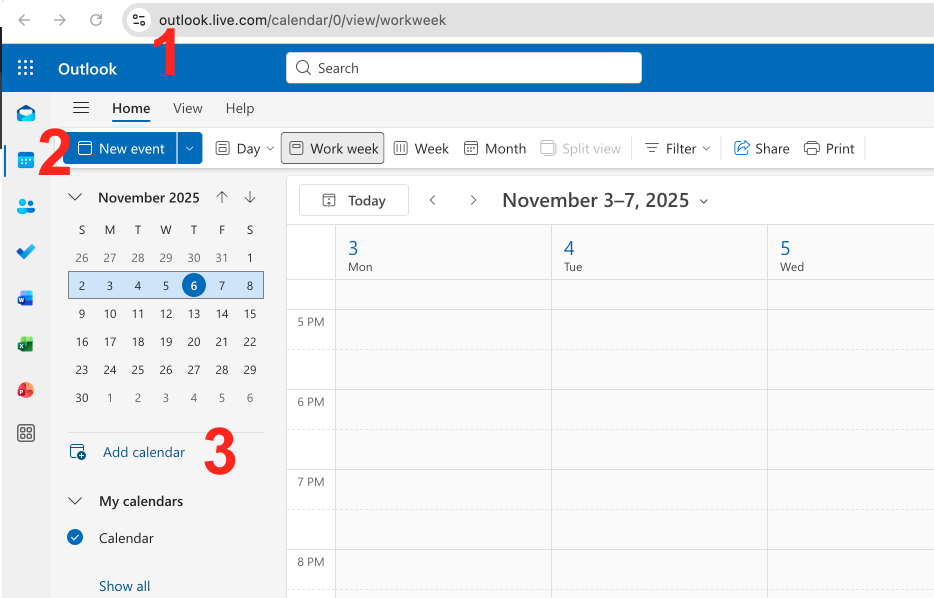
- Open Outlook (desktop or web).
- Switch to Calendar view.
- Click Add Calendar
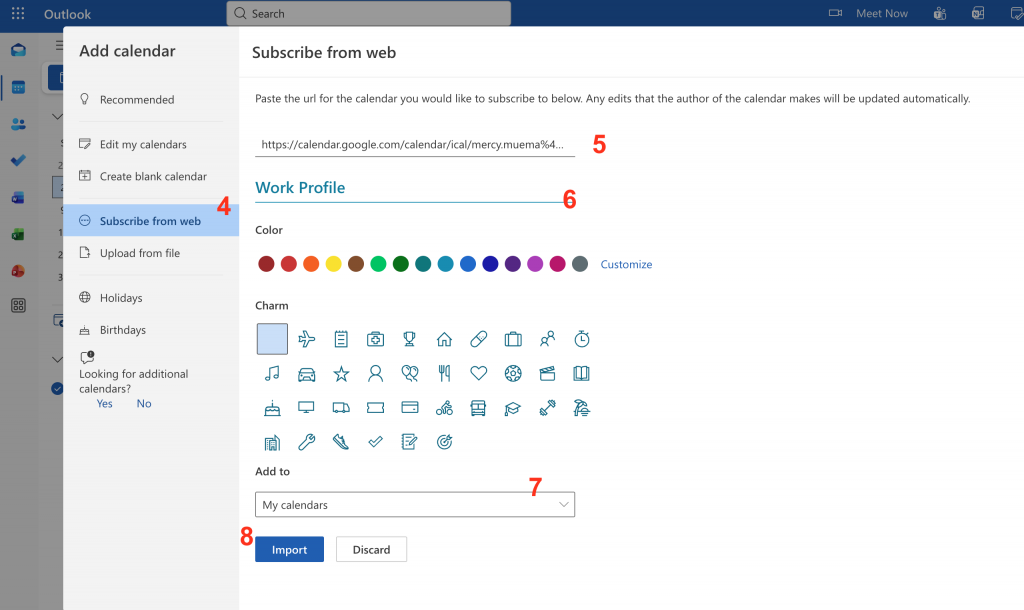
- Select Subscribe from the web
- Paste the iCal link you copied.
- Name the calendar
- Add to My calendars
- Hit Import → Add Calendar.
✅ You’ll now see your Google Calendar events in Outlook!
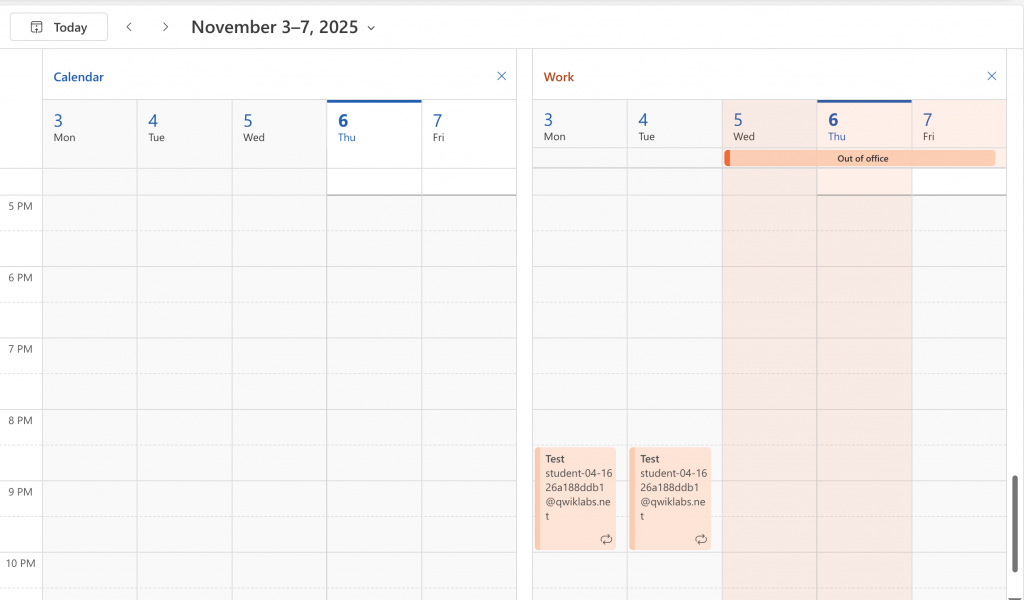 Note: Syncs happen automatically but can take a few hours to update.
Method 2: View Outlook Calendar in Google Calendar
Step 1: Get Your Outlook iCal Link
- From Outlook on the web.
- Click the ⚙️ gear icon → View all Outlook settings.
- Go to Calendar → Shared calendars.
- Select the calendar you want to share
- Under “Publish a calendar,” select your calendar and
- Choose Can view all details on the permissions dropdown
- Click Publish
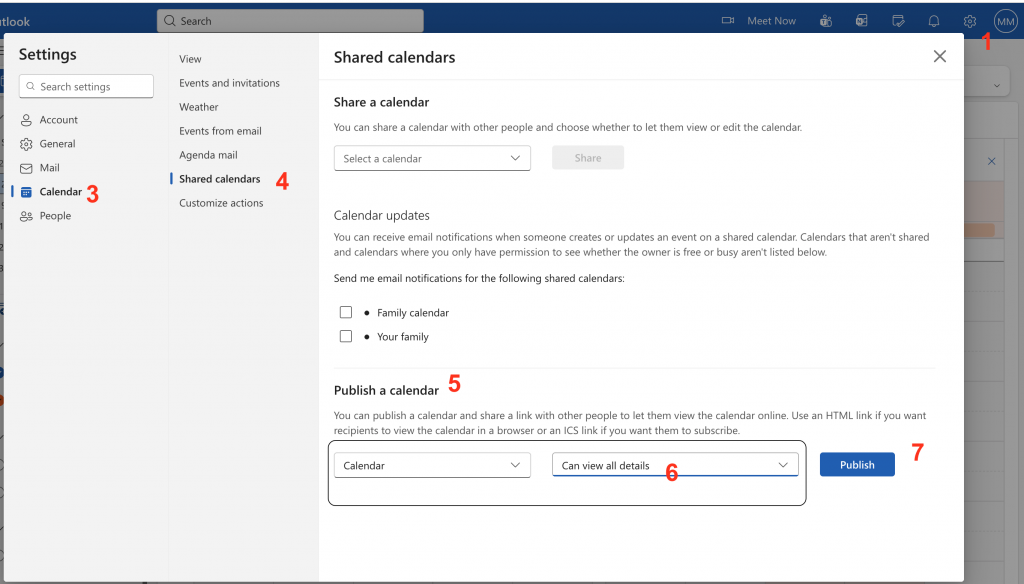
8. Copy the ICS link.
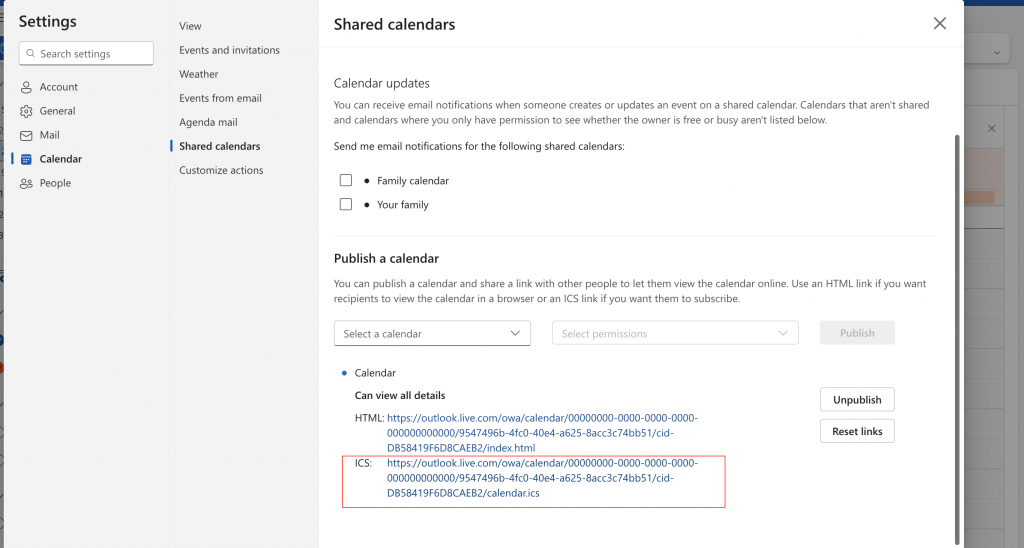
Step 2: Add It to Google Calendar
- Go to Google Calendar.
- On the left sidebar, click the + next to “Other calendars.”
- Choose From URL.
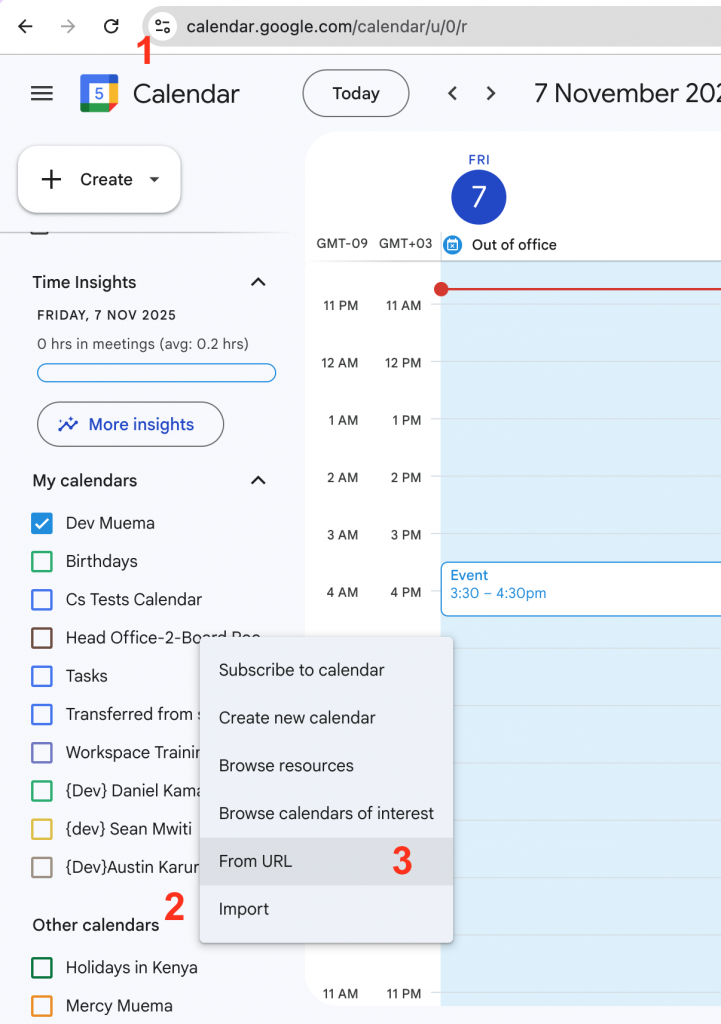
4. Paste your Outlook ICS link and click Add calendar.
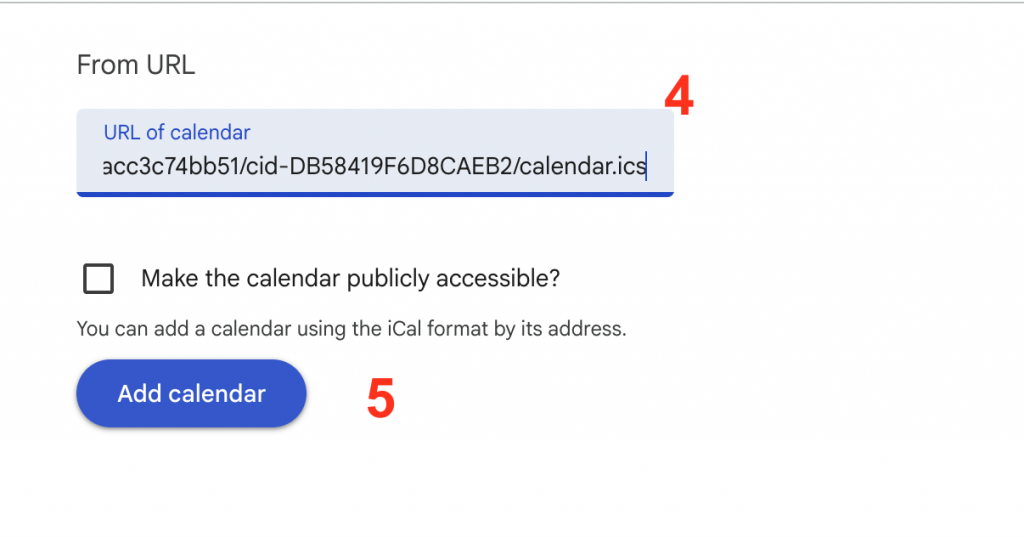
Do not select “Make the calendar publicly accessible” if the calendar includes internal company schedules, sensitive customer details, project timelines, employee information, or any data that should only remain within the organization.
✅ Outlook events will now appear in your Google Calendar view.
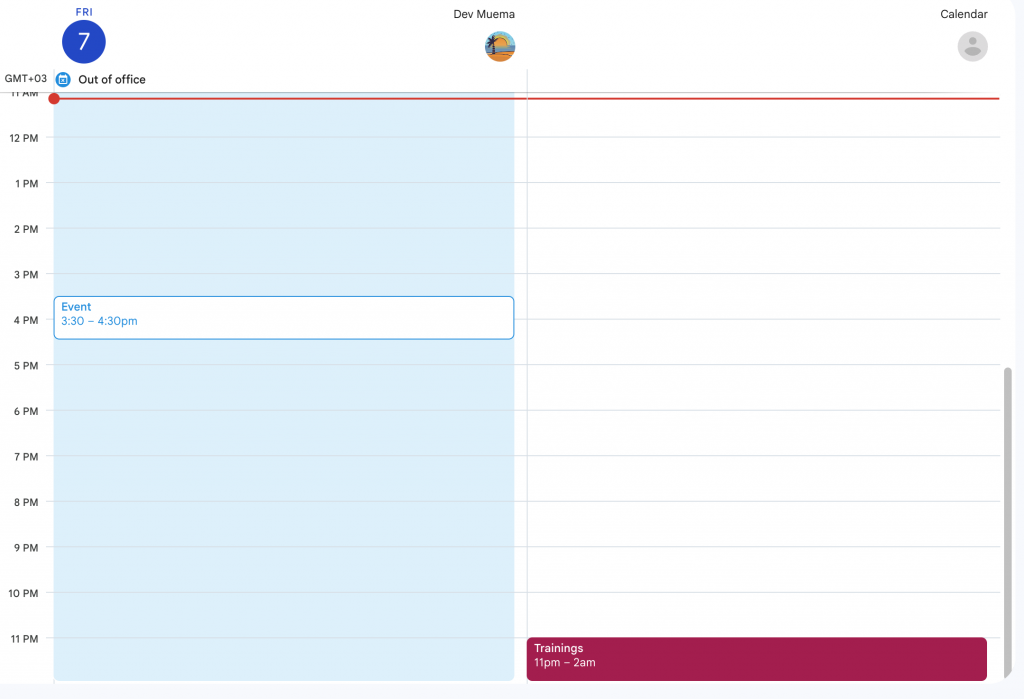
Updates may take some time depending on Microsoft’s sync frequency.
Final Thoughts
Integrating Google Calendar and Outlook is one of those small productivity tweaks that can make a huge difference. Whether you just want to view your personal calendar in Outlook or keep both systems in perfect sync, the methods above have you covered.