

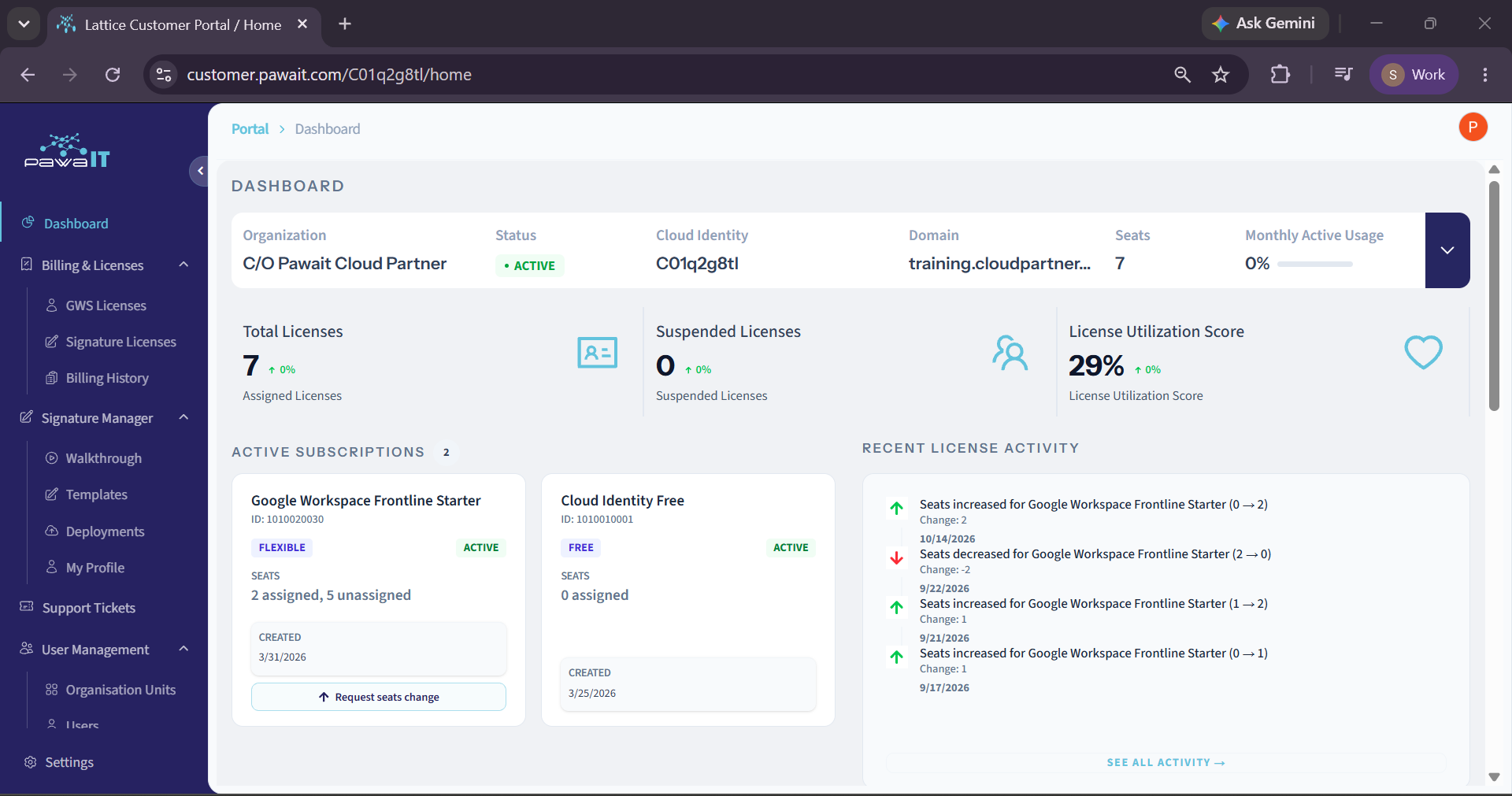

You sign off the Google Workspace invoice every renewal. You’ve probably never opened the account behind it. That’s not a knock, until now, there was nowhere to look, and the honest answer to “how’s our account doing?” was: ask Pawa IT and wait for a quarterly report.
Your customer portal now includes a Google Workspace usage report guide and dashboard built to close that gap: one screen, always current, requiring no admin training. Whether you are looking for how to read Google Workspace admin dashboard metrics or searching for an easy Google Workspace Work Insights alternative, everything you need is on a single page.
Your Google Workspace license count: assigned vs suspended
At the top, you’ll see your total Google Workspace license count assigned vs suspended. This is the number your renewal invoice is built from, so it’s worth understanding precisely, it’s the closest thing to reading the invoice before it arrives.
Assigned means a seat is currently allocated to someone. Suspended means the account still holds a licence, but the person behind it isn’t active, usually someone who’s left. The detail that matters for your sign-off: a suspended account is still billed. Suspending protects the mailbox and files during handover; it does not free the seat. Only reassigning or removing it does.
Say your dashboard shows 20 assigned licences, 3 of them suspended. That’s not “20 licences, all fine” it’s 3 seats you’re already paying for, sitting idle, that would otherwise turn into 3 new licences on your next invoice the moment someone joins. Spotting that number before renewal is the difference between those two outcomes.
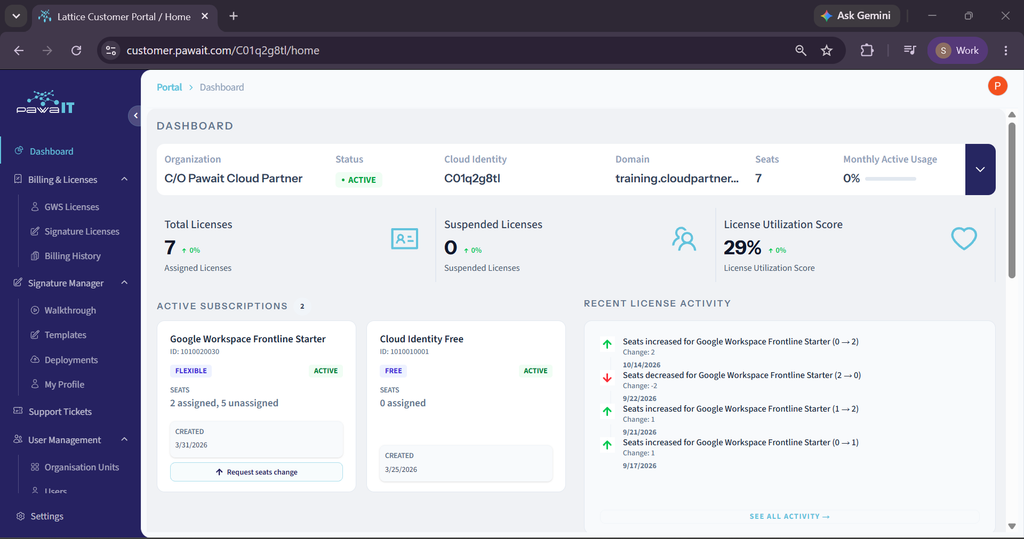
License Utilization Score: are the seats you’ve paid for actually in use
Next to your license counts, your Google Workspace license utilization score provides a single percentage that answers a sharper question than ‘how many seats do we have’, it’s what share of your assigned seats are genuinely active, not just allocated.
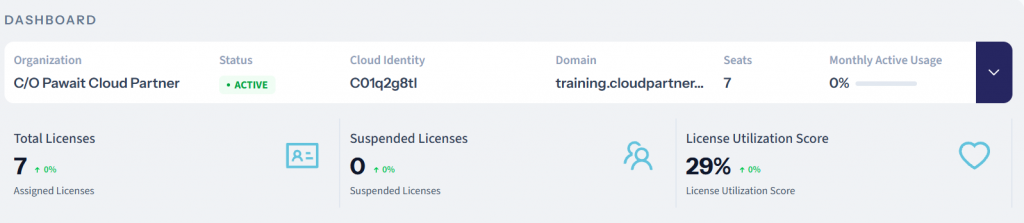
You’ll also see a Google Workspace monthly active users (MAU) figure in the summary bar at the top of the page. Think of it as the same idea in miniature, a fast readout before you scroll down to the fuller score.
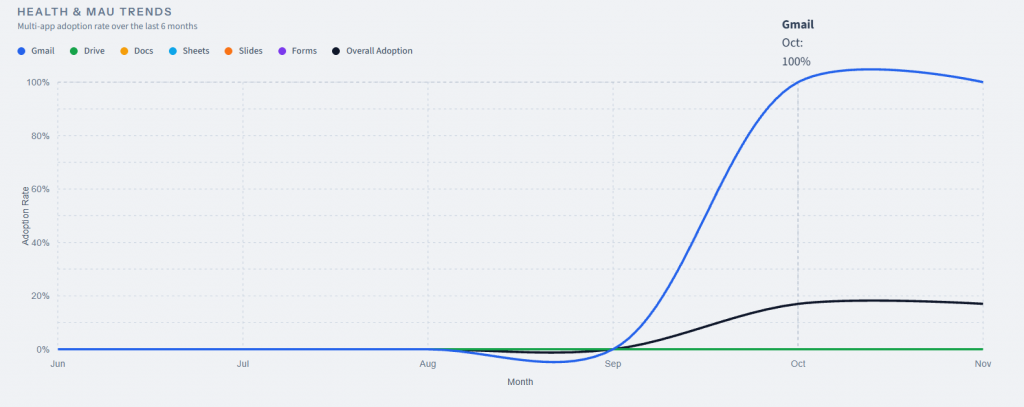
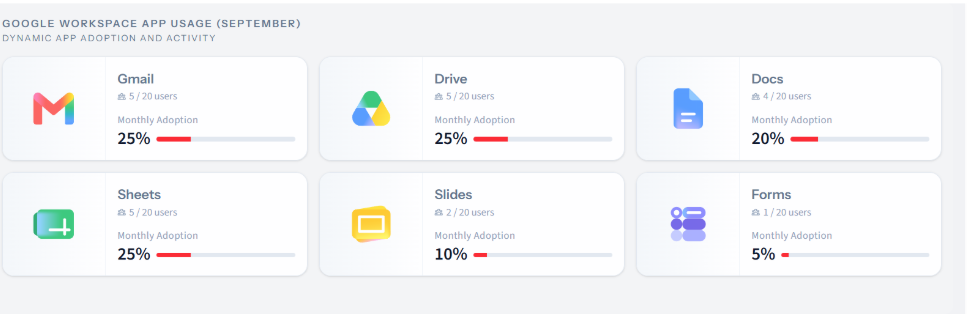
A high, steady score means most of what you’re paying for is really being used.A low or falling score is worth tracing further down to check your Google Workspace adoption rate by app to see which specific application is dragging it down, and whether that’s a real problem or just an app your team doesn’t need . That level of detail has its own page: Reading your Google Workspace usage dashboard.
Active Subscriptions: what you’re actually running
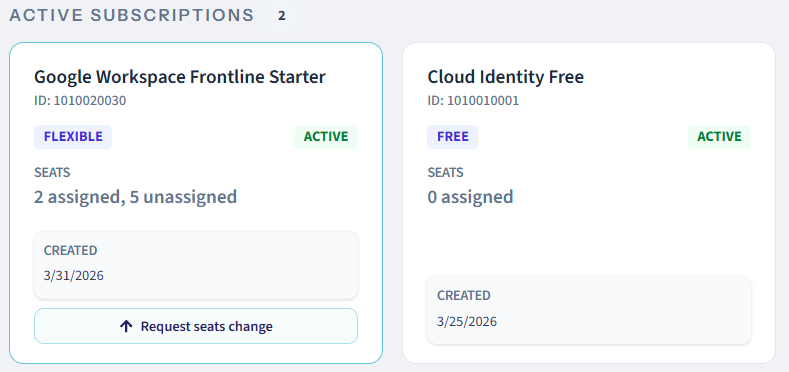
Understanding your Google Workspace active subscriptions annual vs flexible commitment helps you manage overall costs. Each plan shows as its own card, allowing you to track Google Workspace subscription renewal date metrics effortlessly:
- Plan type: Annual (a fixed commitment for a set term) or Flexible (adjustable, billed as you go).
- Status: Active, or Suspended
- Seats, licensed vs. total : how much of what you’ve committed to is actually assigned
On an Annual subscription, you can add seats anytime, billed prorated for the rest of the term but you can’t reduce the committed count until renewal. A Flexible subscription can be adjusted, or sit fully Suspended, without that lock-in. Each card also has a Request seats change button, a direct request from this page, no email back and forth. A card sitting on Suspended, or with a low seats-used ratio, is worth asking about directly: still needed, or trialed once and forgotten?
Recent License Activity: your paper trail
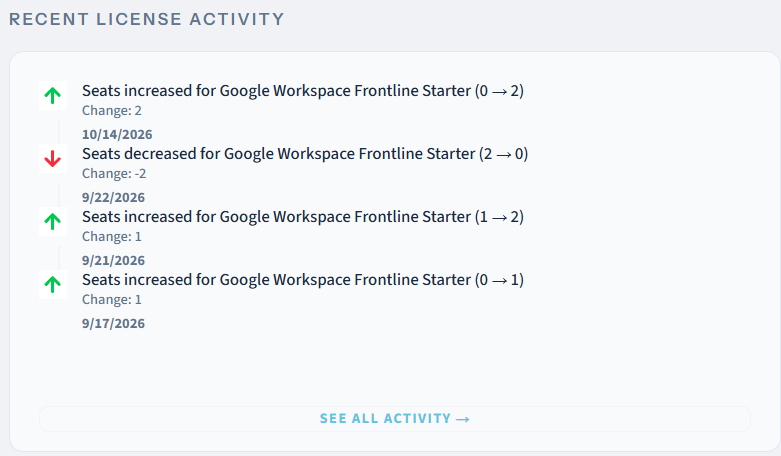
Below the summary, a log tracks changes as they happen, seats added, removed, reassigned. An empty feed just confirms your numbers are stable, not a gap in the page.
What to do with what you see
Five minutes, once a month, with one honest question at each stop:
- Suspended licences climbing, month over month? That’s the bad answer: it means seats are being suspended faster than they’re being reassigned. The fix is immediate: before your next hire’s start date, reassign one of those suspended seats instead of requesting a new licence.
- A subscription card sitting on Suspended? Worth asking directly whether it should be dropped at the next renewal window, rather than carried forward on autopilot.
- Utilization score drifting down across two or three checks, not just one? That’s the point to consult your Google Workspace usage report guide on how to check Google Workspace usage in detail to find out which app is behind it before renewal.
None of this requires Workspace admin knowledge. It requires a glance at a handful of numbers, once a month, and enough scepticism to ask “why” when a number moves the wrong way.
Where to find it
Your dashboard lives in your customer portal, log in with your work Google account at customer.pawait.com to see your own. Five minutes, once a month, is enough to walk into your next renewal already knowing the answer, instead of approving a number you can’t interrogate.