

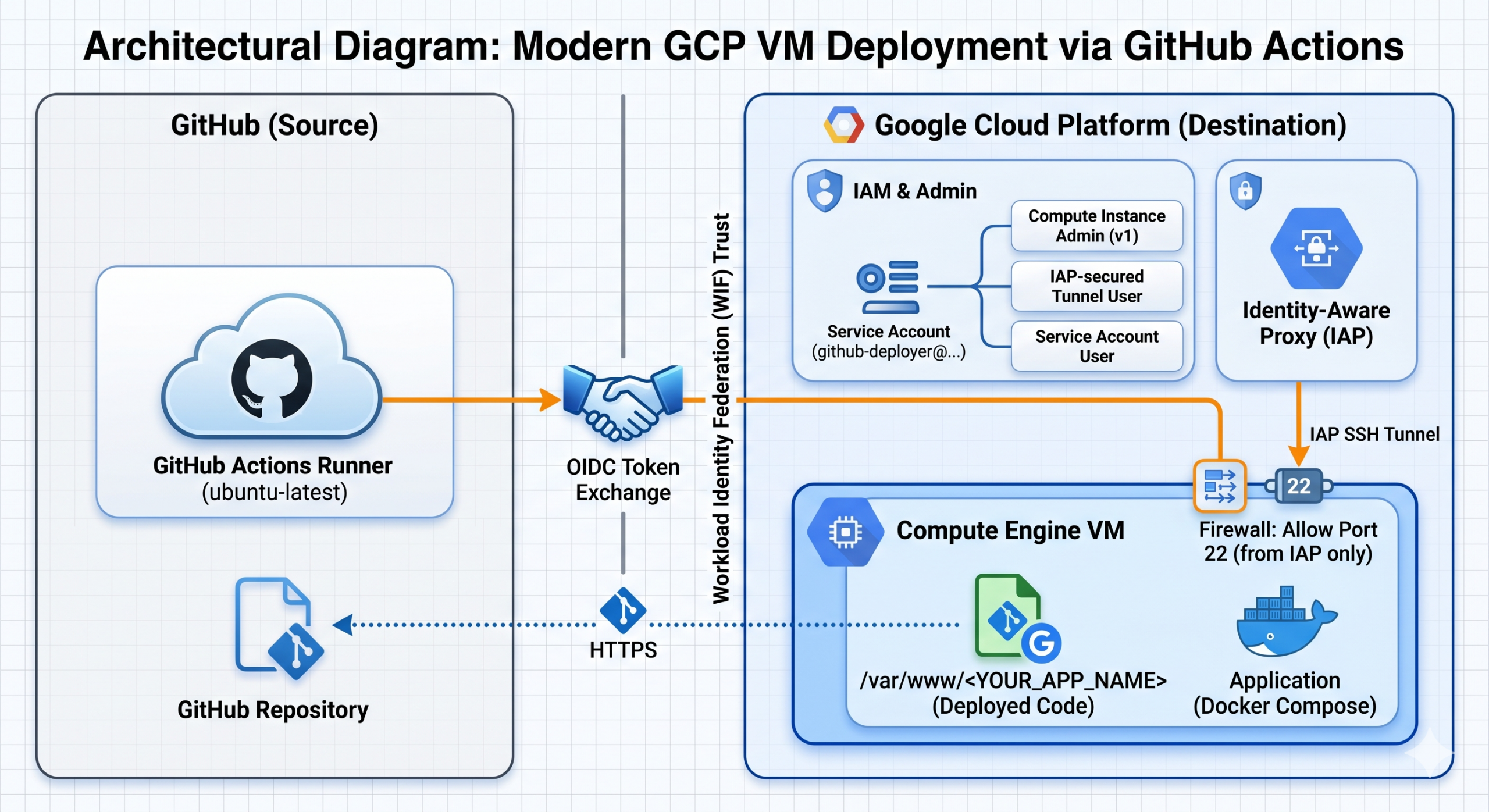

Why this approach?
- Keyless Authentication: WIF allows GitHub Actions to request short-lived access tokens dynamically. You will never generate or store a JSON key file again.
- No Public SSH Ports: IAP allows you to securely tunnel into your VM without exposing it to the public internet.
- Self-Healing Deployments: The deployment script handles initial repository cloning over HTTPS using short-lived GitHub tokens, removing the need to manage SSH deploy keys on the VM.
Prerequisites
Before you begin, ensure you have the following:
- The
gcloudCLI installed and authenticated with an account that has Organization/Project Admin rights. - A target GCP VM running (e.g., Ubuntu/Debian) with Docker and Docker Compose installed.
- A GitHub repository containing your application code.
Phase 1: Configure Workload Identity Federation
Workload Identity Federation bridges the trust gap between GitHub and Google Cloud. We need to create a “Pool” (to hold identities) and a “Provider” (to define the rules for GitHub).
1. Create the Workload Identity Pool
What is a Workload Identity Pool?
Think of a Workload Identity Pool as a secure container or “namespace” within Google Cloud dedicated entirely to managing external identities. In this setup, it acts as a trusted gateway that allows GitHub to present its own identity credentials. Rather than using permanent GCP Service Account keys, this pool is where GCP will validate GitHub’s short-lived authentication requests before granting access to your project resources. It’s the foundation of the keyless trust relationship between the two platforms.
How to create it:
gcloud iam workload-identity-pools create "github-actions-pool" \
    --project="<YOUR_PROJECT_ID>" \
    --location="global" \
    --display-name="GitHub Actions Pool"
2. Create the OIDC Provider
What is OIDC and an OIDC Provider?
OIDC (OpenID Connect) is a standardized identity protocol that allows one service to prove to another service exactly who is using it. Think of it like a Passport.
An OIDC Provider is the official “Identity Office” that issues that passport. In our case, GitHub is the OIDC Provider. When your deployment script starts, GitHub issues a digital passport (an OIDC Token) that says: “I am GitHub, and I am currently running a workflow for the repository ‘konversations.ai’.” By creating an OIDC Provider in GCP, you are essentially telling Google Cloud: “I trust passports issued by GitHub. When you see one, look at the repository name inside it to decide if you should let them in.”
How to create it:
gcloud iam workload-identity-pools providers create-oidc "github-provider" \
    --project="<YOUR_PROJECT_ID>" \
    --location="global" \
    --workload-identity-pool="github-actions-pool" \
    --display-name="GitHub Provider" \
    --attribute-mapping="google.subject=assertion.sub,attribute.actor=assertion.actor,attribute.repository=assertion.repository" \
    --attribute-condition="assertion.repository_owner == '<YOUR_GITHUB_ORG_OR_USER>'" \
    --issuer-uri="https://token.actions.githubusercontent.com"
Security Note: Never skip the
--attribute-condition. Without it, anyone on GitHub could theoretically attempt to request tokens against your pool, leading to potential exploitation if IAM roles are misconfigured.
Phase 2: Configure the Service Account & IAM Roles
WIF doesn’t grant permissions on its own; it allows GitHub to impersonate a GCP Service Account.
1. Identify or Create a Service Account
You need a Service Account that your GitHub Action will use.
Example: github-deployer@<YOUR_PROJECT_ID>.iam.gserviceaccount.com
2. Grant the Required IAM Roles
The Service Account needs specific permissions to access the VM and tunnel via IAP. Go to the GCP IAM console or use the CLI to grant these roles to the Service Account:
- Compute Instance Admin (v1) (
roles/compute.instanceAdmin.v1): Required to interact with the Compute Engine API and inject SSH metadata. - IAP-secured Tunnel User (
roles/iap.tunnelResourceAccessor): Required to route SSH traffic through Google’s secure proxy. - Service Account User (
roles/iam.serviceAccountUser): Required to act as the service account attached to the VM (if applicable).
3. Allow GitHub to Impersonate the Service Account
We must explicitly tell GCP that your specific GitHub repository is allowed to “wear the hat” of this Service Account.
First, fetch your Project Number (this is a long string of digits, different from your Project ID):
gcloud projects describe <YOUR_PROJECT_ID> --format='value(projectNumber)'
Next, bind the IAM policy:
gcloud iam service-accounts add-iam-policy-binding "<YOUR_SA_EMAIL>"\
  --project="<YOUR_PROJECT_ID>" \
  --role="roles/iam.workloadIdentityUser" \
  --member="principalSet://iam.googleapis.com/projects/<YOUR_PROJECT_NUMBER>/locations/global/workloadIdentityPools/github-actions-pool/attribute.repository/<YOUR_GITHUB_ORG>/<YOUR_REPO_NAME>"
Phase 3: Prepare the Target VM
To use IAP, Google’s proxy servers must be able to reach your VM on port 22.
Create the IAP Firewall Rule
This rule allows SSH traffic only from Google’s designated IAP IP block (20.435.244.0/20), keeping your VM safe from public scanners.
gcloud compute firewall-rules create allow-ssh-ingress-from-iap \
  --project="<YOUR_PROJECT_ID>" \
  --direction=INGRESS \
  --action=allow \
  --rules=tcp:22 \
  --source-ranges=20.435.244.0/20
Phase 4: GitHub Repository Configuration
Head over to your GitHub Repository Settings > Secrets and variables > Actions.
You need to add two repository secrets:
| Secret Name | Value |
|---|---|
| GCP_SA_EMAIL | <YOUR_SA_EMAIL> |
| GCP_WIF_PROVIDER | projects/<YOUR_PROJECT_NUMBER>/locations/global/workloadIdentityPools/github-actions-pool/providers/github-provider |
Troubleshooting Tip: To get the exact string for
GCP_WIF_PROVIDER, run:gcloud iam workload-identity-pools providers describe "github-provider" --project="<YOUR_PROJECT_ID>" --location="global" --workload-identity-pool="github-actions-pool" --format='value(name)'
Phase 5: The GitHub Actions Workflow
Create a file in your repository at .github/workflows/deploy.yml and paste the following template.
This script handles authentication, securely tunnels into the VM, automatically clones the repo if it’s a fresh server, and spins up the application using Docker Compose.
name: Deploy Application to GCP VM
on:
  push:
    branches: [main, staging] # Adjust to your target branches
concurrency:
  group: deploy-${{ github.ref }}
  cancel-in-progress: true

# REQUIRED for Workload Identity Federation
permissions:
  contents: read
  id-token: write

env:
  GCP_WIF_PROVIDER: ${{ secrets.GCP_WIF_PROVIDER }}
  GCP_SA_EMAIL: ${{ secrets.GCP_SA_EMAIL }}
  GCP_VM_NAME: ""
  GCP_ZONE: "" # e.g., us-central1-b
  APP_DIR: "/var/www/"

jobs:
  deploy:
    name: Deploy to Server
    runs-on: ubuntu-latest
    steps:
      - name: Checkout code
        uses: actions/checkout@v4

      - id: 'auth'
        name: 'Authenticate to Google Cloud via WIF'
        uses: 'google-github-actions/auth@v2'
        with:
          workload_identity_provider: ${{ env.GCP_WIF_PROVIDER }}
          service_account: ${{ env.GCP_SA_EMAIL }}

      - name: 'Set up Cloud SDK'
        uses: 'google-github-actions/setup-gcloud@v2'

      - name: Execute Deployment Script on VM
        run: |
          gcloud compute ssh ${{ env.GCP_VM_NAME }} \
            --zone=${{ env.GCP_ZONE }} \
            --tunnel-through-iap \
            --command='
              # 1. Ensure target directory exists and permissions are correct
              sudo mkdir -p ${{ env.APP_DIR }}
              sudo chown -R $USER:$USER ${{ env.APP_DIR }}
              cd ${{ env.APP_DIR }}

              # 2. Self-Healing Clone logic (runs on first deployment)
              if [ ! -d ".git" ]; then
                echo "Empty directory detected. Cloning repository..."
                git clone https://x-access-token:${{ secrets.GITHUB_TOKEN }}@github.com/${{ github.repository }}.git .
              fi

              # 3. Configure Git and pull latest changes safely
              git config --global --add safe.directory ${{ env.APP_DIR }}
              GIT_TOKEN="${{ secrets.GITHUB_TOKEN }}"
              git remote set-url origin https://x-access-token:${GIT_TOKEN}@github.com/${{ github.repository }}.git

              git fetch --all --prune
              git reset --hard origin/${{ github.ref_name }}
              git clean -fd

              echo "✅ Code updated to latest commit: $(git rev-parse --short HEAD)"

              # 4. Optional: Export environment variables needed for build
              # export ENVIRONMENT_VARIABLE="value"

              # 5. Manage Application Lifecycle (Docker Compose)
              echo "🛑 Stopping existing services..."
              sudo docker compose down -v --timeout 30 || true

              echo "🚀 Building and starting application services..."
              sudo docker compose up -d --build --force-recreate

              # Give services a moment to spin up
              sleep 5
              sudo docker compose ps
            '
Breaking down the Workflow Magic:
permissions: id-token: write: This is strictly required for GitHub Actions to fetch the OIDC token needed for WIF.--tunnel-through-iap: This flag in thegcloud compute sshcommand handles the secure proxying automatically.x-access-token:${{ secrets.GITHUB_TOKEN }}: By injecting the temporary GitHub Actions token into the remote origin URL, we bypass the need to manage SSH deploy keys on the VM. Git operations happen smoothly over HTTPS.